What is NAPP or NSX Application Platform ???
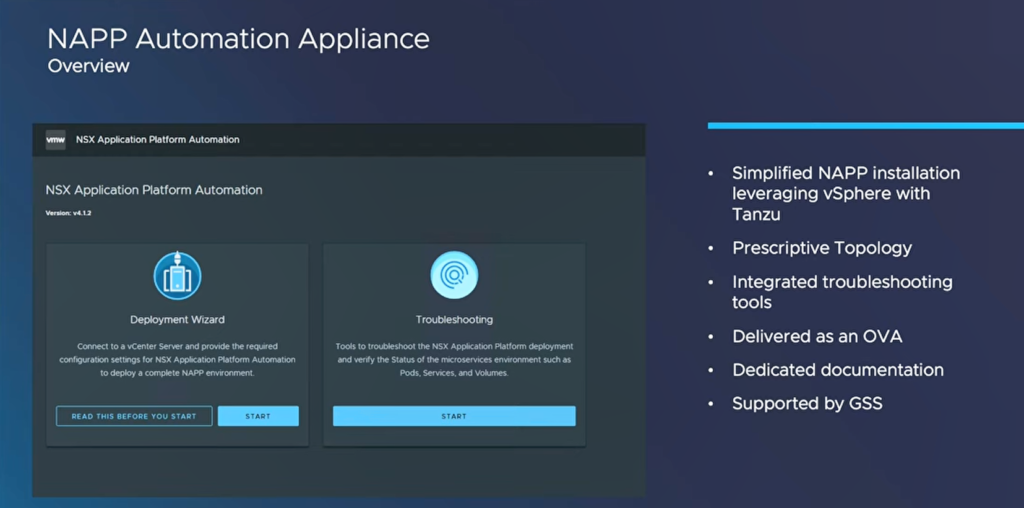
–The NAPP Automation Appliance provides a automated approach to deploying the NSX Application Platform along with the underlying TKGS(Tanzu Kubernetes Grid Service) infrastructure, following a standardized architecture
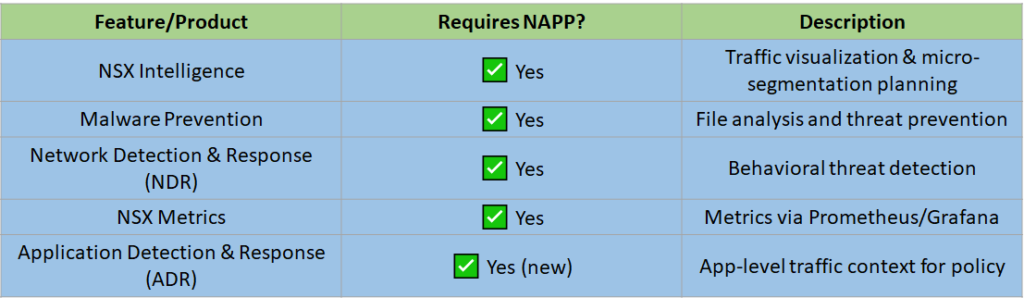
–With NAPP you unlock the ability to run several advanced NSX security and analytics features — all containerized, cloud-native services running on a Kubernetes cluster. like
1. 🧠 NSX Intelligence
2. 🛡️ NSX Malware Prevention
3. 🔎 NSX Network Detection and Response (NDR)
4. 📊 NSX Metrics
5. 🔐 NSX Application Detection and Response (ADR) (in newer versions)
read more for How to install and run
https://players.brightcove.net/6415665063001/Vh8ALpkmx_default/index.html?videoId=6351157761112
- From your browser, log in with Admin privileges to NSX Application Platform Automation Appliance at https://<nsx-application-platform-automation-ip-address>.
- Click Read This Before You Start and implement all the prerequisites before deployment.Failure to configure your environment correctly causes most NSX Application Platform deployment errors.
- Click I Am Ready to exit the prerequisite page and start the deployment process.
- In the Deployment Wizard page, click Start.
- In the Environment Configuration tab, click Connect Now.
- Enter your VMware vCenter information details.OptionDescriptionvCenter ServerEnter the server FQDN or IP address.UsernameEnter the Admin user name.PasswordEnter the Admin password.If your login credentials for VMware vCenter change after deployment, you can update them in the NSX Application Platform Automation Appliance.
- Click Connect.The target VMware vCenter login credentials are authenticated.
- Review and accept the trusted VMware vCenter certificate.
- From the respective drop-down menus, designate the target VMware vCenter data center, cluster, datastore, and storage policy used for the deployment and click Next.Make sure that the data center has adequate resources available.
- Configure the Management, Frontend, and Workload network details and click Next.OptionDescriptionManagementFrontendWorkloadDesignate a distributed port group, NSX VLAN or NSX overlay network, and default gateway.Use the CIDR notation for the default gateway.For example: 10.221.216.253/24Other SettingsAssign an NTP Server, single or multiple DNS Server IP addresses, and Search Domain.Search Domain should be a public top-level domain such as .com or .info. Private top-level domain such as .lab or .local are not supported.You cannot use FQDN for DNS servers.

- Configure the load balancer details and click Next.OptionDescriptionHA Proxy DeploymentEnter the VM name, host name, and password.ManagementFrontendWorkloadProvide the Management, Frontend, and Workload IP addresses assigned to the HA proxy.You must have one IP address in each Management and Workload network.Load Balancing SettingsAssign the supported number of NSX Application Platform instances. The maximum number of supported instances is 5. The number of instances cannot be changed after deployment.For example, if you have configured for two instances during deployment, after deployment you cannot change the number of instances to 5.The VIP IP address range is pre-populated after you provide the Management, Frontend, and Workload IP addresses. You must carefully assign the Management, Frontend, and Workload IP addresses. The load balancer VIP IP address range setting cannot be changed after deploying the NSX Application Platform.
 The inputs are validated to ensure the required IP ranges and subnets are valid, non-overlapping, and in the correct subnets.After the validation is successfully completed, the Next button is activated. If one of the required options has an error, you must fix the problem before proceeding.
 - Configure the Management and Workload IP address details and click Next.OptionDescriptionManagement NetworkThe Management network requires a pool of five consecutive IP addresses.Enter the first IP of the pool, and the UI shows the range of the IP addresses that must be available.Workload NetworkThe Workload network requires a minimum pool of 25 consecutive IP addresses. The system calculates the exact number of required IP addresses based on the MAXIMUM NUMBER OF NAPP INSTANCES setting.Enter the first IP of the pool, and the UI shows the range of the IP addresses that must be available.

- Configure NSX Application Platform installation sources and click Next.OptionDescriptionURLPublic HostedEnter a secure URL for the public Helm and Docker repository.It is recommended that you use the default public VMware-hosted installation source.URLLocalEnter a URL for the locally stored Helm and Docker repository.Sample Helm Repository – oci://<local-harbor-repo-url>/nsx_application_platform/helm-charts .Sample Docker Registry – <local-harbor-repo-url>/nsx_application_platform/clustering.Toggle the Certificate is trusted by a Public CA option and add the non-public CA certificate details in the dialog box.Connectivity SettingsUsing a ProxyToggle the Using a proxy option to activate proxy server configuration if you do not have internet connectivity to route internet traffic.This option is available only in the NSX Application Platform Automation Appliance 4.2 release.Provide all the proxy server details accurately to avoid an error during verification.
- Scheme – Select HTTP or HTTPS from the drop-down menu.If you use HTTPS, you must upload the proxy server certificate.
- Host IP or FQDN – Enter an IP address or FQDN.
- Port – Enter a port number.The default port is 3128, you can configure a different port if needed. This port number should be unique and not in use by other services on the network. The port must allow incoming traffic from the NSX Application Platform components that must use the proxy server.
- Username – Enter a user name.This is optional.
- Password – Enter a password.This is optional.
- Certificate – Add the proxy server certificate. If self-signed or Private CA certificate is used for the proxy, the certificate should include Subject Alternative Name (SAN).
- No Proxy – Add no proxy setting for a TKG cluster in the NSX Application Platform Automation Appliance and specify IP addresses for which the proxy should not be used. See Configure No Proxy for Tanzu Kubernetes Guest Cluster.You must add the no proxy details before the Tanzu Kubernetes Grid deployment.
 Proxy Server Settings
- Configure NSX Application Platform instances details.
- Click the three dots under the Instance Name.
- Click Edit.The Edit NAPP instance page opens.
- Enter the NSX Application Platform instance name, NSX IP address or FQDN, and password.
- If you configured public Helm repository and Docker registry location for your proxy sever in the previous step, click Apply Proxy to NSX and Continue to propagate the proxy details you entered to NSX.The newly added proxy server details and applied certificate are available in the NSX Manager, under SystemGeneral SettingsInternet Proxy Server.
- Click Ignore and Continue to skip propagating the public Helm repository and Docker registry location proxy server details to NSX.
 If a proxy is configured on NSX Manager but deactivated, you must activate the proxy with the same proxy details as configured on NSX Manager to proceed. Different proxy details are not accepted.
 - Verify that the release version is accurate.To change the release version, click the drop-down arrow and select the version to deploy. If you are using NSX Application Platform Automation Appliance 4.2, NSX Application Platform 4.2, and private Harbor with an earlier than NSX 4.2 version, manually add the private Harbor certificate to the trusted store on all three NSX Managers. If the certificate is not manually added, the NSX Application Platform versions do not appear in the drop-down menu.
- Select a form factor.
- Advanced (all services) – has four Kubernetes worker nodes and three supported control plane nodes.
- Evaluation – has one Kubernetes worker node and one supported control plane node.Scale-out operations are not supported on the Evaluation form factor.
- Use the default number for the control plane, Kubernetes worker nodes, and resource reservation settings.You must set the resource reservation settings for a production environment and the setting must have three control plane nodes.
- Click Next.
- Enter the service and messaging name to set the appropriate DNS records and click Update.The service and messaging names must be configured with the IP address in the DNS server.
- Click Next.
- Select Configuration Complete, Run Precheck.The NSX Application Platform Automation Appliance deployment wizard displays all the required validations of the underlying VMware vCenter environment and status.
- Click Next.NSX Application Platform Automation Appliance deployment wizard displays all the required validation of the traffic flows between the permitted networks before proceeding with the vSphere with Tanzu deployment.
- After the permitted network traffic flows are validated, install the Tanzu Kubernetes Grid.If the TKG deployment stops at the WaitForCertificate step, set the HA proxy CA certificate value, which might be missing during VM reboot or an HA proxy event. See the KB 370186.
- Review the deployment status to make sure the deployment is successful.
- If there is a vSphere with Tanzu deployment error, you must resolve it before you proceed.ActionDescriptionStop DeploymentHalts the ongoing deployment so that you can fix the error.This action does not undo any previous deployments.Update & RedeployStart the ongoing deployment after fixing an error.The deployment starts from the point it was stopped.CleanupRemoves all the previous deployment tasks.Click Update & Redeploy to restart the deployment with a clean slate.All the clean-up items are queued, and the process starts from the last task and is completed on the first task.ResetRemoves all the existing deployment configurations and deletes the Kubeconfig files.You can download the generated Kubeconfig file and store the offline copy of the token.
- In the vSphere Client, verify that the vSphere with Tanzu cluster is created and powered on.
- Click Next to open the Deploy NAPP tab.
- Click Deploy to start the provisioning of the NSX Application Platform.If an error message appears, perform a diagnostics test to identify the error. See Using the NSX Application Platform Automation Appliance Troubleshooting Dashboard.The installation duration depends on your environment.
- After the installation is complete, click Done to return to the NSX Application Platform Automation Appliance home page.
- From your browser, log in with Enterprise Admin privileges to an NSX Manager at https://<nsx-manager-ip-address>.
- Navigate to SystemNSX Application Platform in the Configuration section.
- Verify the state of the newly installed NSX Application Platform.Wait for a few minutes for the NSX Application Platform to appear as stable.